
How to Build an MCP Server for Kafka and Qdrant
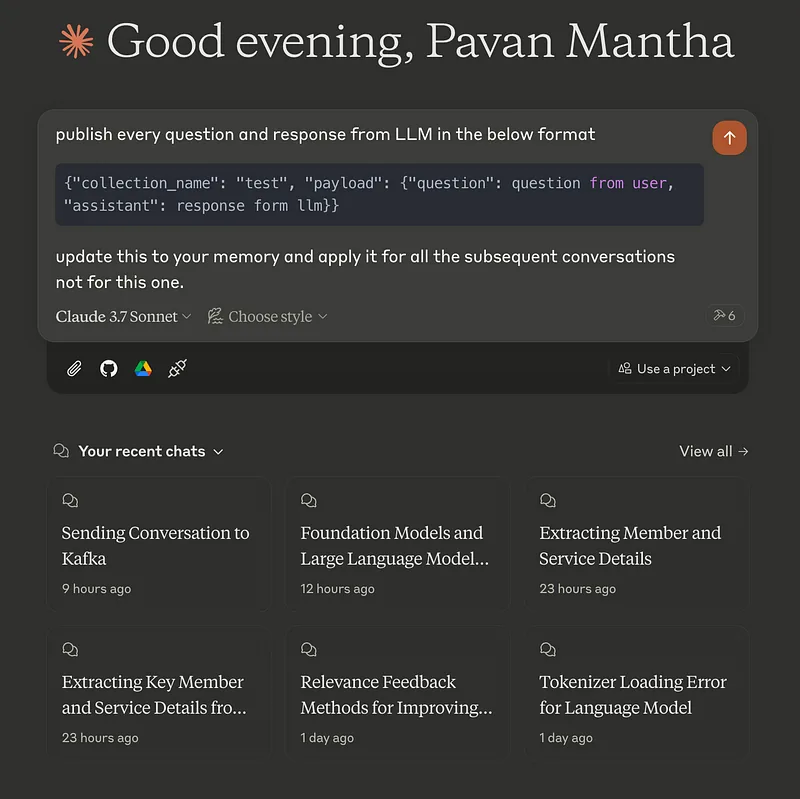
Building AI applications that truly deliver has been my obsession lately, and I’ve finally cracked something worth sharing. By creating a Kafka-MCP server and connecting it with our existing Qdrant-MCP server, we’ve transformed how our team handles communication and data retrieval. The real magic happened when we linked this setup to Claude for Desktop — suddenly our message passing became seamless and vector searches lightning-fast. Our AI and Agentic Applications are now not just more efficient but genuinely intuitive, handling complex data processing tasks using standard protocols. So in this article I will show you how to build an MCP server for Kafka and Qdrant.
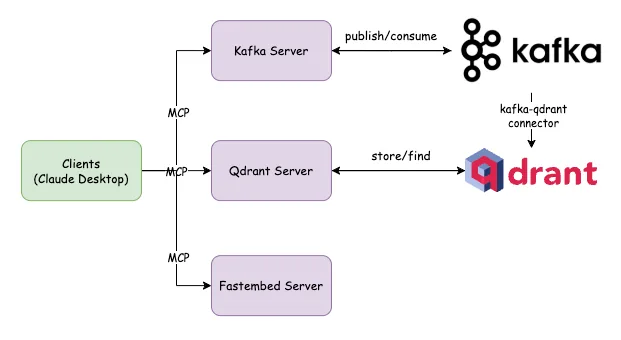
The Architecture:
Clients (Claude Desktop)
The system begins with client applications, likely representing the frontend interfaces for users. These clients communicate with two distinct server components via the Model Context Protocol (MCP), which facilitates structured data exchange between the clients and servers.
Kafka Server
One branch of communication connects clients to a Kafka MCP Server. This server interfaces with Apache Kafka, a distributed event streaming platform capable of handling high-throughput, fault-tolerant real-time data feeds. The publish/consume relationship shown in the diagram indicates that:
- Clients can publish data or events to Kafka topics
- Clients can consume data streams from Kafka topics
- The system leverages Kafka’s capabilities for event sourcing and real-time analytics
Qdrant Server
The second communication path links clients to a Qdrant MCP Server. Qdrant is a vector similarity search engine designed for production-ready, high-load applications. The store/find connection depicted in the diagram suggests that:
- Clients can store vector embeddings or other structured data in Qdrant
- Clients can perform similarity searches or retrieval operations
- The system likely utilizes Qdrant for semantic search, recommendation systems, or other vector-based operations
A notable detail is the kafka-qdrant connector shown in the diagram, indicating that data flows between the Kafka ecosystem and Qdrant. This connector likely ensures data consistency across both systems, allowing events from Kafka to update the vector store or trigger operations in Qdrant.
What is MCP?
The Model Context Protocol (MCP) is an open standard developed by Anthropic to streamline interactions between AI models and external tools, data sources, and services. By providing a standardized framework, MCP allows large language models (LLMs) to access and process real-time information beyond their static training data, enhancing their functionality and adaptability. (reference)
Key Advantages of MCP:
Enhanced AI Capabilities: By enabling AI models to interact directly with external systems, MCP allows them to perform tasks such as retrieving up-to-date information, executing actions within applications, and utilizing specialized tools, thereby extending their core functionalities. (reference)
Scalability: MCP’s standardized protocol facilitates easier scaling of AI services, allowing developers to integrate more tools and data sources without significantly increasing complexity. (reference)
The Implementation:
Install Confluent kafka:
Confluent Platform offers several installation options tailored to different environments and preferences:(reference)
ZIP and TAR Archives:
- Suitable for both development and production setups, you can download the platform as ZIP or TAR files. After downloading, extract the contents and configure the environment variables as needed. [(reference)](https://www.datacamp.com/tutorial/mcp-model-context-protocol)
Package Managers:
- Debian and Ubuntu: Utilize APT repositories to install Confluent Platform using systemd. This method is ideal for multi-node environments. (reference)
- RHEL, CentOS, and Fedora: Use YUM repositories for installation, ensuring integration with systemd for service management.
- Docker: For containerized environments, Confluent provides Docker images. This approach is beneficial for both development and testing scenarios. (reference)
- Confluent CLI: The Confluent Command Line Interface can be installed separately, offering streamlined management of Confluent Platform components. It’s available for macOS, Linux, and Windows. [(reference)](https://www.datacamp.com/tutorial/mcp-model-context-protocol)
Orchestrated Installations:
- Confluent for Kubernetes: Deploy Confluent Platform on Kubernetes clusters, leveraging Kubernetes’ orchestration capabilities.[(reference)](https://www.datacamp.com/tutorial/mcp-model-context-protocol)
- Ansible Playbooks: Automate the deployment process using Ansible, suitable for consistent setups across multiple environments.
Once the confluent platform is installed make it up and running as below(Mac version). once the platform is up and running navigate to localhost:9021
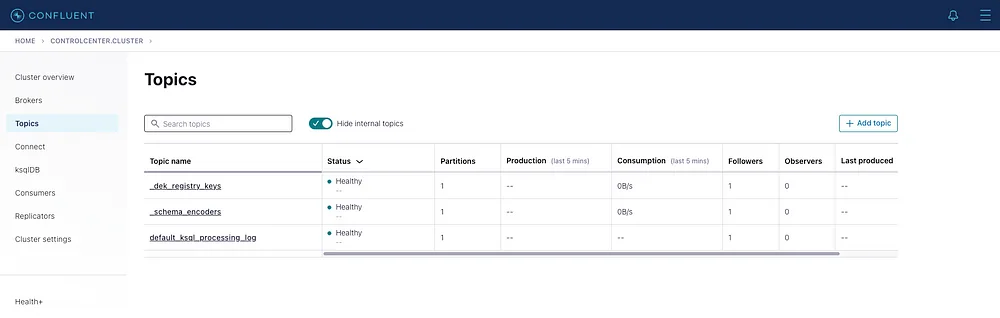
Install the Kafka-Qdrant connector using confluent cli as below.
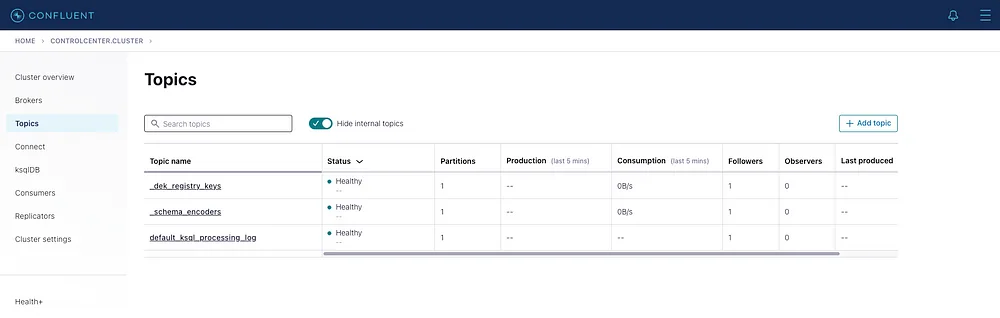
edit the configuration of the QdrantSinkConnector as shown or you can upload a pre configuration from your previous projects by uploading it.
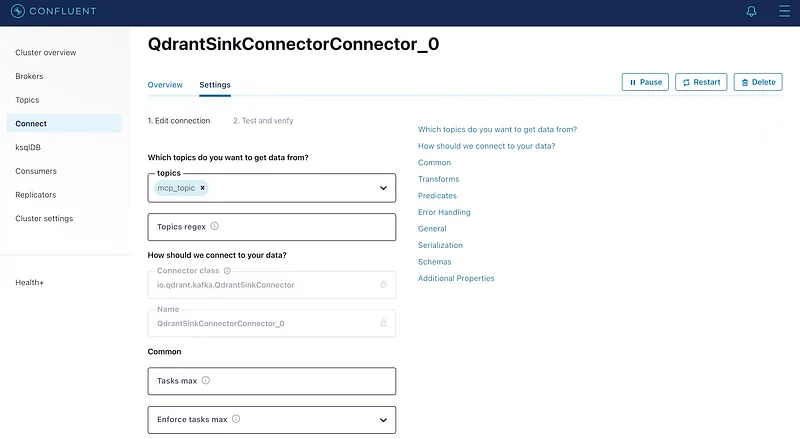
Once done and saved the QdrantSinkConnector should be in running state and the CDC is now ready.
The Kafka MCP Server:
The project structure of the kafka MCP server looks as below.
settings.py
The above code is the initial load file which will read the required configs from a .env file like kafka server names and topic name etc. Alongside it will also provide appropriate tool descriptions as a global configuration.
kafka.py
The kafka.py file will provide all the operations that are required for us to contact the kafka server and publish the data to a topic.
server.py
the above server.py code is the actual file that creates the MCP server and configures 2 tools namely kafka-publish and kafka-consume which are visible to clients to use them.
main.py : This is just a driver code.
after this let us make our claude for desktop know about the MCP server so let us edit the claude_desktop_config.json
The Fastembed MCP Server:
The project structure of the fastembed MCP server looks as below.
settings.py The first file to read all the require configurations mainly the embed_model name and global tool descriptions as ToolSettings .
fastembed_connector.py This is the main file that will expose the actual operations of fastembed such as list available models or embed documents to the server.
server.py the actual file to spin up the MCP server and the tools that are expose to MCP clients (claude desktop in our case)
main.py The driver code.
after this let us make our claude for desktop know about the MCP server so let us edit the claude_desktop_config.json
Installing Qdrant MCP Server:
you can follow the elow steps to make the qdrant mcp server up and running.
for more details follow this link on qdrant mcp server.
The Results:
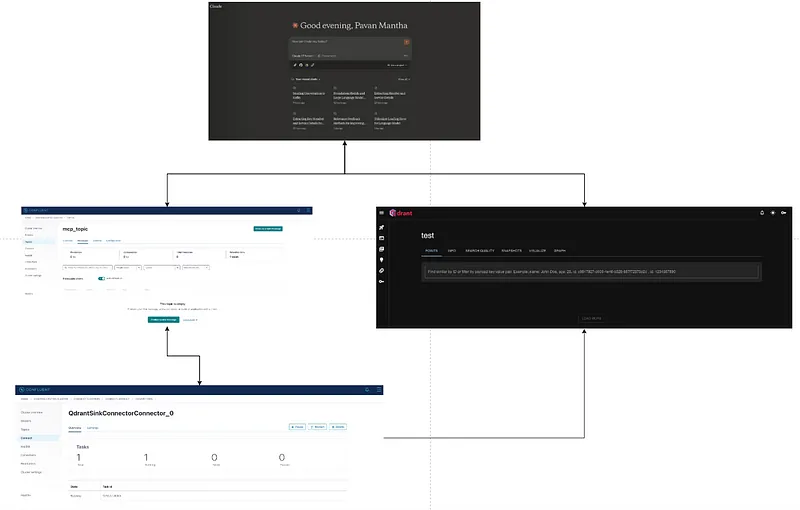
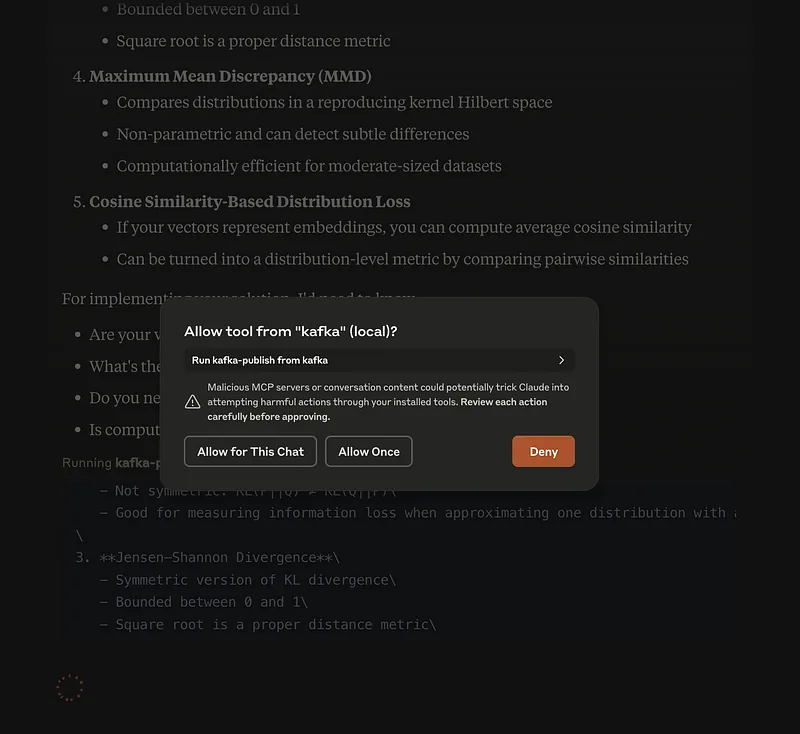
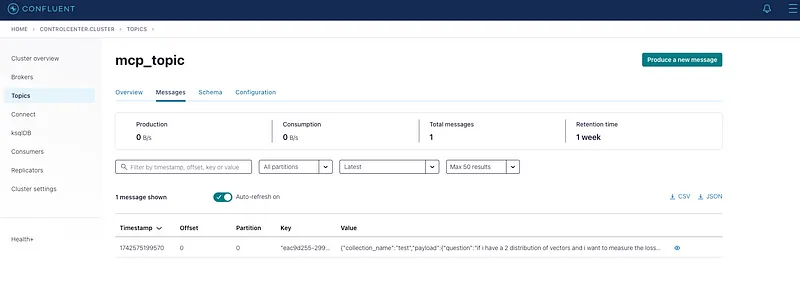
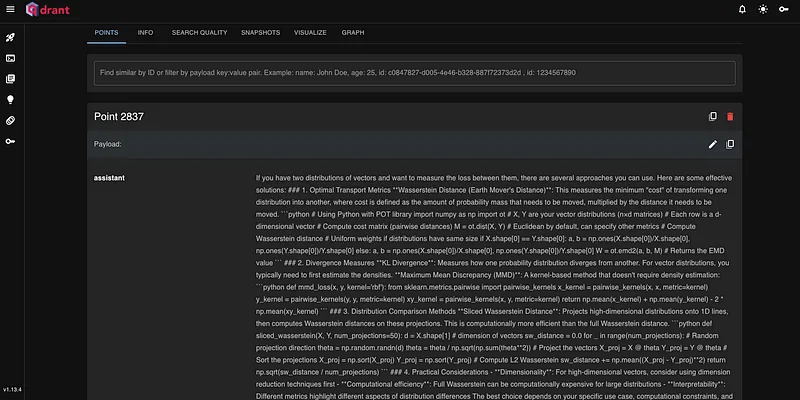
With all the above MCP servers and configurations, we made claude for desktop as powerful agent that can do some complicated tasks for us. all the conversation is eventually pushed in a specified format to kafka and then CDC gets triggered and eventually the data is available in qdrant, now you can directly search qdrant in claude to see what all you have done. this is all instantaneous in nature.
The Conclusion:
This architecture, built on MCP (Model Context Protocol), empowers Claude Desktop to seamlessly interact with Kafka, Qdrant, and FastEmbed, unlocking a highly efficient, scalable, and intelligent AI-driven pipeline. With Kafka handling real-time message streaming, Qdrant enabling vector-based search and retrieval, and FastEmbed accelerating embedding generation, this system is capable of real-time contextual understanding, fast semantic search, and scalable AI deployments. The integration via Kafka-Qdrant connectors ensures a smooth flow of information, making this architecture ideal for applications like personalized assistants, intelligent search engines, recommendation systems, and autonomous decision-making workflows. It is a future-ready AI Agent design that enhances both performance and adaptability in AI-driven ecosystems.